How to find a product by photo
Use a photo, screenshot or product label to find the item you saw and where to buy it. This guide walks you through the search form and shows how to compare matching offers.
Find itemUpload a photo and crop around the item
On the home page, choose Upload photo and pick a picture. The crop window opens straight away. Draw or adjust the frame around the item. Keep the logo, seams, label or other distinctive details in view. Select Done to use the crop, or Use full photo when the whole image shows the item clearly.
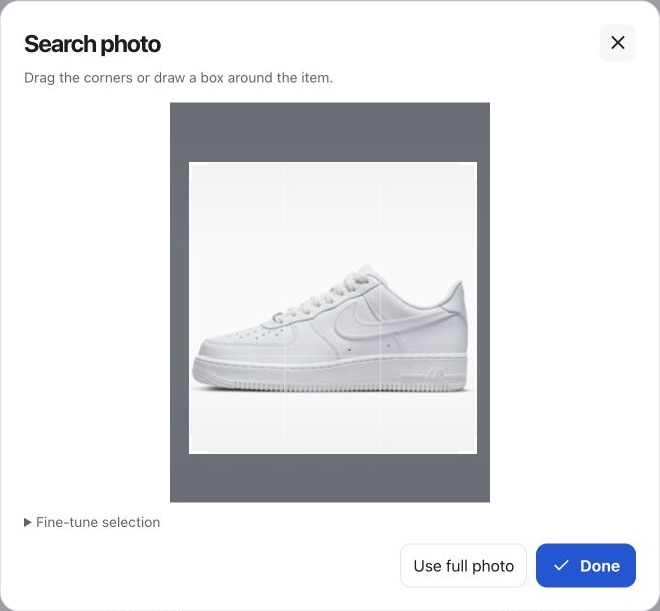
The crop window lets you select the shoe and keep its identifying details. Choose where to search and check the cost
Worldwide is selected by default. Choose your country to look for offers near you, or select both areas to compare. One area uses one search credit. Searching both uses up to two. The form shows your balance and the cost before you search. Add a brand, model or SKU in the optional field if you know it, then choose Find item.
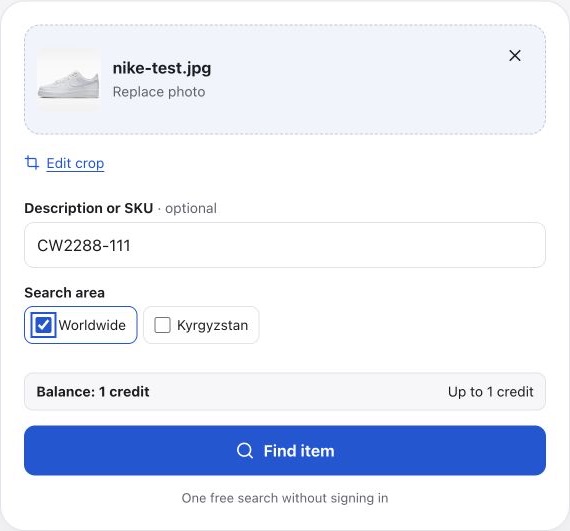
The search area, credit balance and cost appear next to the search button. Check the model, colour and condition
The page scrolls to results when the search finishes. Check the name and SKU if one was found. If available, use Exact SKU to see offers with the same code. Possible matches can help you narrow the list when the code is unknown. Use Alternatives to see similar products. Open the store page to verify colour, size, condition and availability. Similar-looking listings can show a different model or a different version.
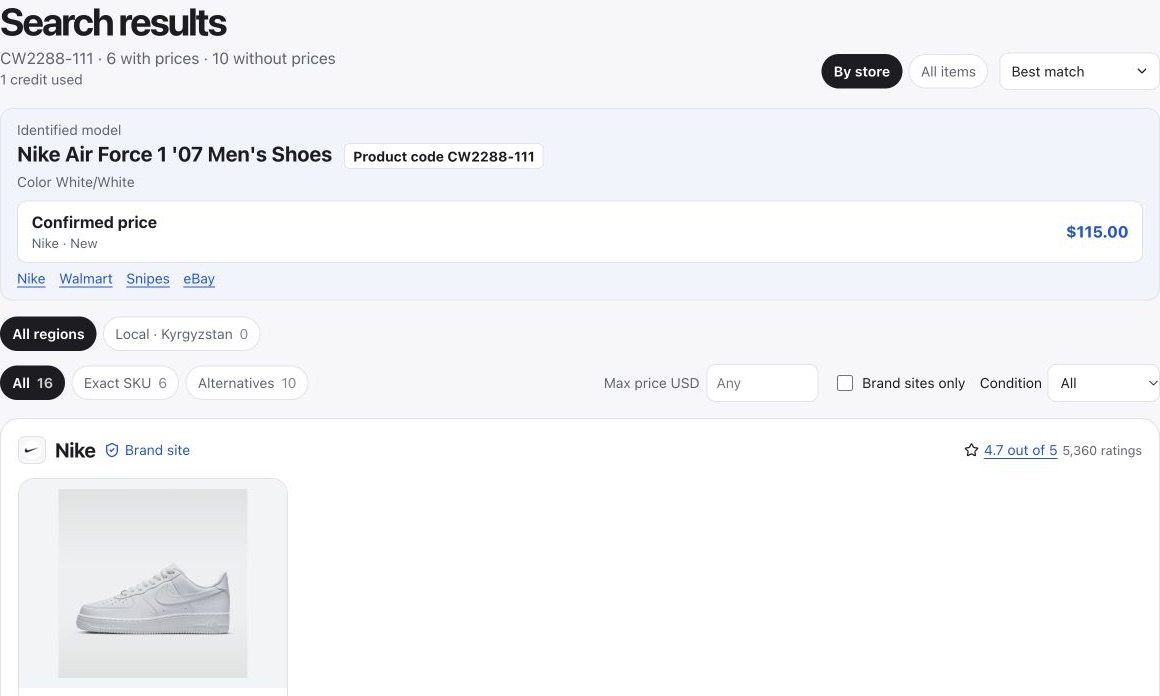
Example results for Nike Air Force 1 ’07. Prices reflect the example search and may change. Compare prices and open the shop
Switch between worldwide and local results when local offers are available. Use the sort control to compare prices or store reputation. A price shown in your preferred currency is an estimate when it has been converted. Check the original amount and current availability on the seller’s page.
Find the results again later
After signing in, open Account and then Search history. You can reopen a saved set of results without using a credit. To look up current prices and availability, run a new search or check the seller’s page.
Example with a sneaker photo
The screenshots use a white Nike Air Force 1 ’07 and the model number CW2288-111. Compare listings for that code, then open the seller’s page to verify the size and condition. When price matters more than the exact pair, browse the alternatives.
How to find clothes by pictureCan I search without a photo?
Yes. Enter a product description or SKU and choose Search by description. A brand plus a model number is a useful starting point.
What if the exact item is missing?
Try a tighter crop, a clearer label, or a second photo from another angle. Add the brand, colour or a distinctive detail. Treat similar products as alternatives until a retailer’s listing confirms the model.